Tie Lines
Tie Lines let you patch a physical audio device directly in and out of a spacecommz.io channel, straight from your browser, with no app install required. Think of it as a software version of the patch bay you’d use to wire a hardware intercom into the rest of your facility.
A Tie Line takes audio from one of your computer’s inputs (a sound card, USB interface, or audio device) and sends it into a spacecommz.io channel, while simultaneously taking that channel’s audio and sending it back out to one of your outputs. This makes it easy to bridge spacecommz.io with hardware intercom systems, matrix routers, broadcast desks, or any device with a line in and line out.
Unlike a normal space member, Tie Lines deliberately bypass our audio processing. Noise reduction, auto-gain, and echo cancellation are all disabled, so the audio passes through cleanly, exactly as you’d expect from a hardware tie line.
Opening the Tie Line page
Visit the Tie Line configuration page in your browser:
The first time you open it, your browser will ask for microphone permission. This is required so we can detect your audio input and output devices. Grant it, otherwise no devices will appear.
Connecting to your space
To configure a Tie Line you need:
- Space: the name of the space you want to connect to.
- API Key: the Tie Lines API key for that space.
You can find and enable your Tie Lines API key in the space settings.
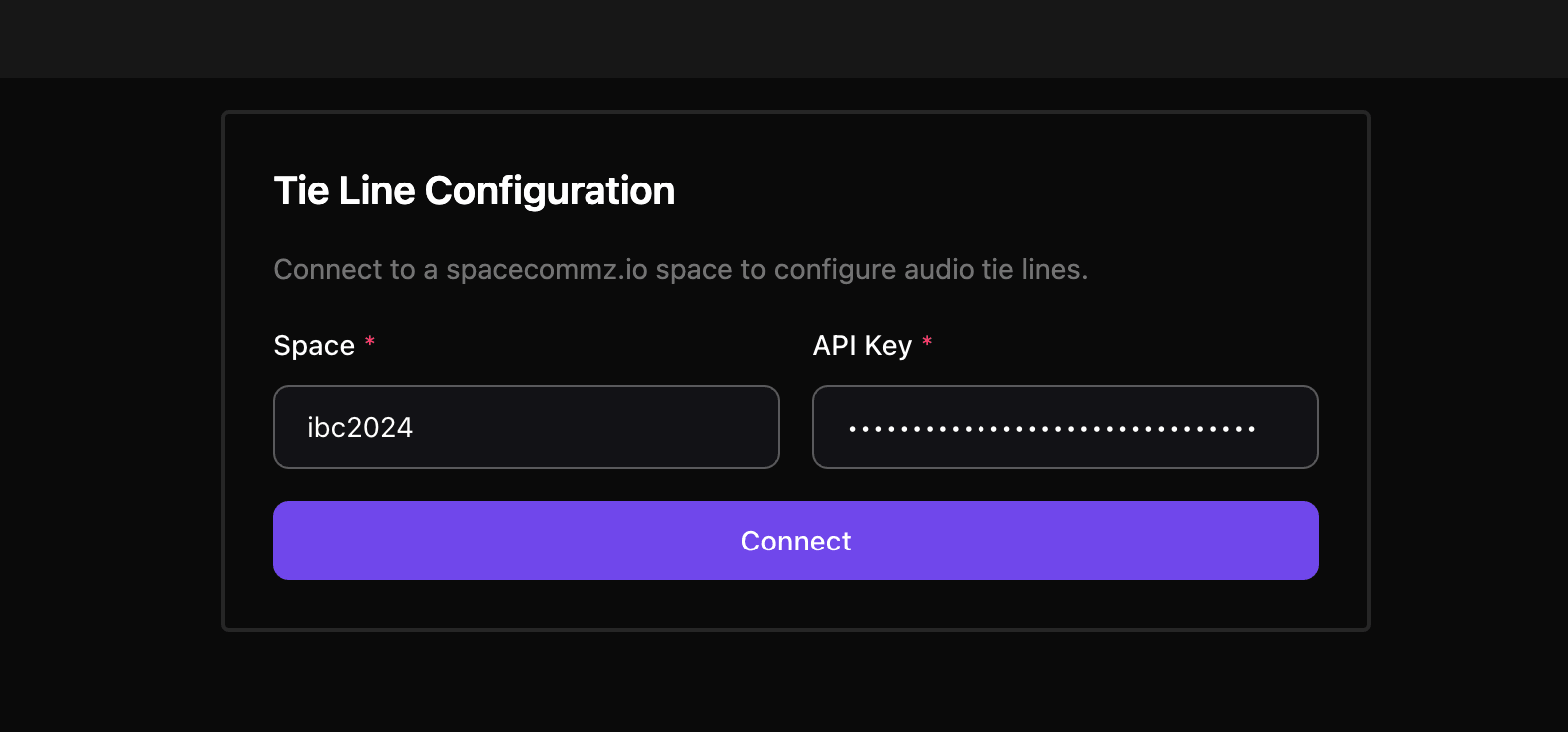
Enter both values and choose Connect. Once connected, the channels for your space will load and you can begin configuring tie lines.
You can also pre-fill these values by passing them as URL parameters, for example
app.spacecommz.io/tie?space=my-space&apiKey=.... This is handy for bookmarking a one-click setup on a dedicated machine.
Configuring a Tie Line
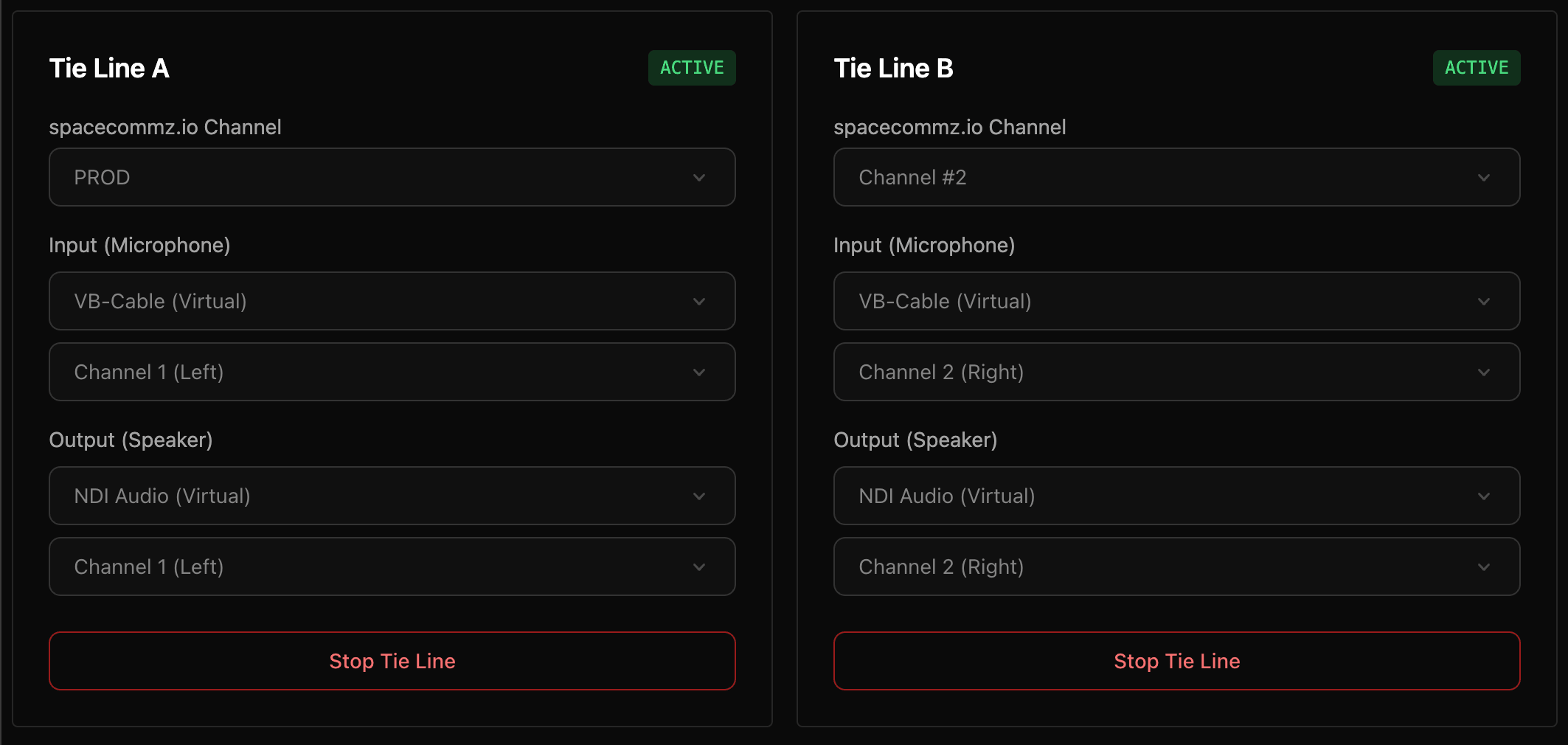
Two independent tie lines are available, Tie Line A and Tie Line B, so you can route two separate paths at once (for example, a left and right feed, or two different channels).
For each tie line you set the following:
- spacecommz.io Channel: the channel this tie line talks and listens on.
- Input (Microphone): the physical input device feeding audio into the channel, plus which stereo channel to use (Channel 1 / Left or Channel 2 / Right).
- Output (Speaker): the physical output device the channel’s audio is sent out to, plus which stereo channel to use (Channel 1 / Left or Channel 2 / Right).
Selecting a stereo channel lets you carry two mono tie lines down a single stereo device. For example, Tie Line A on the left channel and Tie Line B on the right channel of the same interface.
Once all options are selected, choose Create Tie Line. The status indicator will move from CONNECTING to ACTIVE when the tie line is live.
Stopping a Tie Line
To tear down a tie line, choose Stop Tie Line. This disconnects from the channel and releases the audio devices. Closing the browser tab or disconnecting from the space will also stop any active tie lines.
Helpful links
- Settings: PGM Mode. Another way to bring clean, unprocessed audio into your comms.