NDI for live streaming: a practical setup guide (and where comms fit)
A working live streamer's guide to setting up NDI: what it actually is, what to put on your network, and how production comms slot in alongside the video.
• John Barker
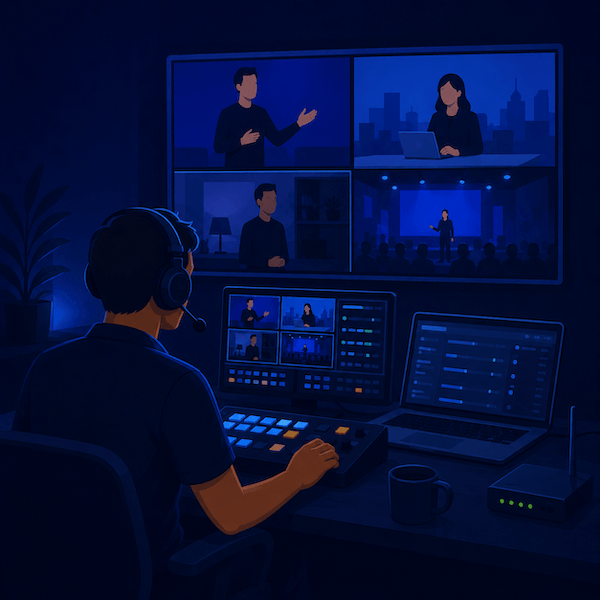
The first time most people meet NDI, it’s because someone says: “Just send it over NDI, it’ll be easier.” And then there’s a forty-five minute debugging session about why a switcher in the next room can’t see the camera that’s plugged into the same Wi-Fi.
NDI is genuinely great. It’s also opinionated about networks, and it rewards you for understanding it rather than treating it as magic. Here’s what you need to know to set up a clean NDI workflow for live streaming, and how to make sure your crew comms ride alongside it without fighting for bandwidth.
NDI in 90 seconds
NDI stands for Network Device Interface. It’s a protocol developed by NewTek (now part of Vizrt) for sending professional-grade video and audio over standard IP networks. It’s not just video-over-IP. It’s video-over-IP designed to behave like SDI used to, with auto-discovery, low latency, and frame-accurate timing.
The specifics:
- A 1080p60 NDI stream uses about 125 Mbps.
- A 4K60 stream uses about 250 Mbps.
- An NDI HX stream (the lower-bandwidth variant) uses 8-15 Mbps.
- Latency is typically a few frames. It feels real-time.
- Discovery is automatic on a single subnet: devices broadcast their availability via mDNS.
Why people love it: it turns any Ethernet cable into a video cable. A camera, a graphics laptop, a switcher, and a recorder all on the same gigabit switch can pass video back and forth as easily as they share a printer.
Why people get frustrated: those bandwidth numbers are real, and “any old network” is not a network NDI will be happy on.
What NDI is not
A few things that surprise people:
- NDI is not designed for the public internet. It expects a LAN. There’s a separate product called NDI Bridge for crossing between locations. More on that below.
- NDI is not Wi-Fi-friendly at full bitrate. You can do it, but a single 1080p60 full-NDI stream will eat half the Wi-Fi capacity of a typical access point. NDI HX is much more forgiving.
- NDI is not the same as Newtek’s old SDI. It’s a software protocol; you don’t need any special hardware to use it.
- NDI is not free of network configuration. mDNS, multicast, and switch behavior all matter once you have more than a few sources.
The “use ethernet” rule
If you remember one thing from this post: use a wired gigabit connection for every NDI source and receiver you can. Wi-Fi is fine for laptops doing chat, browsing, and even high-quality NDI HX. It is not fine as the spine of a live multi-camera production.
A starter network for a 3-camera NDI stream:
- A managed gigabit switch (8 ports is plenty). NETGEAR ProSAFE, Ubiquiti UniFi Switch Lite, or similar. ~$100.
- Cat6 cables to each NDI device.
- A separate Wi-Fi access point on the same switch for laptops and phones that don’t need to push full NDI.
Bandwidth math: three 1080p60 NDI sources are ~375 Mbps of broadcast traffic. A gigabit switch handles that easily; a 100 Mbps switch will not. If you can, get a switch with IGMP snooping enabled. This prevents NDI’s multicast traffic from flooding ports that don’t need it. On most modern managed switches, IGMP snooping is a checkbox.
OBS, vMix, and TriCaster as receivers
Three of the most common NDI receivers in live streaming:
OBS Studio with the obs-ndi plugin gives you free NDI input and output on Mac, Windows, and Linux. Set it up once, point it at your NDI sources, treat them like any other video source.
vMix has NDI input and output built in. It’s the most polished NDI experience for Windows producers and integrates cleanly with vMix Call for adding remote guests.
NewTek TriCaster treats NDI as a first-class citizen because it’s the same family. If you’re on a Tricaster, you don’t have to think about NDI. It just works.
In all three cases, the workflow is the same: NDI sources show up automatically in a list, you add them to your scene or input bank, you switch as you would any other source.
Where comms fit alongside the video
The thing nobody explains in NDI tutorials: how do you talk to your crew while all this video is flowing?
A pattern that works:
- NDI for video on the production LAN. Cameras, switchers, recorders, replay.
- A software intercom like spacecommz.io running on the same crew’s devices, but using a separate logical network path, usually just the regular internet uplink rather than the production LAN’s multicast pool.
- A bridge if you want camera ops to monitor program audio: route the NDI program audio into a PGM-mode member of your space, and they hear the show without needing a separate audio path.
Why use a separate path for comms? Two reasons:
- NDI is bandwidth-hungry on a LAN. Web comms is bandwidth-cheap on an internet uplink. They don’t compete.
- NDI inside a venue, comms across the venue. Your camera op down the hall on Wi-Fi can’t reliably receive NDI video on Wi-Fi, but they absolutely can be on a browser-based intercom on the same Wi-Fi. Different tools for different jobs.
This split also means a remote producer or director can be on comms with the venue crew without needing the NDI traffic to leave the LAN. The crew is unified; the video stays where it belongs.
NDI Bridge for multi-site shows
For workflows that span more than one venue, such as a REMI game, a multi-campus church, or a touring corporate event, NDI Bridge encapsulates NDI traffic into a stream that can cross the public internet.
Bridge handles encryption, NAT traversal, and the bandwidth reduction needed to make NDI realistic over a typical internet uplink. It works well for connecting two facilities; it’s less ideal as a substitute for SRT in heavy-duty broadcast environments.
For most live streamers, you won’t need Bridge. For most REMI productions, you probably will, alongside SRT for the main feeds.
Common bandwidth and discovery issues
A few patterns we’ve seen come up:
“My switcher can’t see the camera.” Almost always a network problem, not an NDI problem. Same subnet? Same VLAN? mDNS allowed? If you’re using two switches, are they linked with enough bandwidth?
“NDI traffic is killing my router.” A consumer router does not love NDI. Move to a managed switch with IGMP snooping. The router should only see the streams that need to go to its uplinks.
“Frames are dropping over Wi-Fi.” Switch to NDI HX, or wire that device. NDI’s full bitrate plus a busy 5GHz band plus other devices adds up to packet loss fast.
“I can see the source but I get a green frame.” Codec mismatch, usually NDI HX vs full NDI on a receiver that doesn’t support the variant. Check NDI version compatibility.
“Comms quality dropped when I added a fourth camera.” If you’re putting comms on the same Wi-Fi as NDI, you’re seeing the contention I warned about above. Move comms to a separate uplink or wire the comms-receiving devices.
A starter NDI rig
If you’re putting together your first NDI live stream this month and want a known-good combination:
- Cameras: any USB-C or HDMI camera with an NDI-capable encoder. The PTZOptics Move-SE, Vaddio RoboShot, or any Sony camera with an HDMI feed into an Epiphan Pearl Mini works well.
- Switcher: vMix on a Windows machine or OBS Studio + obs-ndi on Mac.
- Network: managed gigabit switch with IGMP snooping enabled, wired connections everywhere possible.
- Comms: a free spacecommz.io space with channels for crew PL and announcer IFB. Each crew member joins via the desktop app or browser.
- Talent feeds: talent links for any guest who needs to hear program audio without being on crew comms.
That gets you a clean three-camera NDI stream with proper comms for under $2,000 in incremental gear, assuming you already own the cameras.
Where to go next
If you want to see how NDI fits into a larger streaming setup, the live streaming use case shows the full picture. If you’re heading toward a multi-site or remote setup, REMI explained is the next stop. And if you’re building a run sheet around your NDI rig, the run-of-show template plugs into all of this neatly.
NDI is one of those technologies that feels finicky for a week and then suddenly clicks. Give yourself a clean network, wire what you can, and don’t be afraid to start with NDI HX while you learn the ropes. Future you will be glad you didn’t try to debug full-bandwidth NDI over hotel Wi-Fi.