Setting up comms for a multi-camera church service: a volunteer's guide
A friendly walkthrough for church tech volunteers: how to coordinate a multi-camera Sunday service with browser-based intercom and a small team.
• John Barker
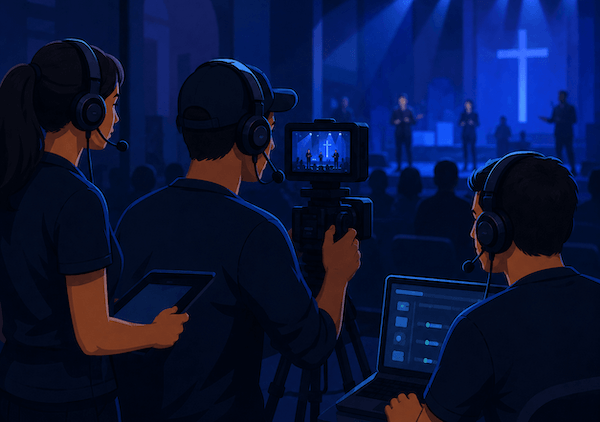
It’s 9:47 on a Sunday morning. The 10 a.m. service starts in thirteen minutes. Your camera 2 op is brand new, your stream operator is swapping in for someone who’s sick, and the worship leader just changed the song order. You’re standing at the back of the auditorium with a clipboard, and the sound tech can’t find you because your phone is on silent.
Sound familiar?
Volunteer-run church production teams are some of the most ambitious live productions on earth. You’re putting on a multi-camera, multi-source live show every week, often with a different roster of people, and the goal isn’t a perfect technical broadcast. It’s a service that helps your community worship without distraction. Comms is what makes that possible.
This guide is for the tech lead who’s been handed the keys and asked to “make the stream work.” It assumes you have one or two cameras, a stream computer, and a small team of volunteers. It does not assume you have a $20,000 hardware intercom or a full-time A/V director.
The crew you actually have
Let’s get specific. A common Sunday morning crew at a church running a multi-camera stream looks something like this:
- One director or “stream lead” running the switching software (vMix, OBS, Pro Presenter Producer, etc.).
- A ProPresenter or lyrics op handling the projection screens and lower thirds.
- One audio tech at the front-of-house console.
- One or two camera ops, sometimes the same person who ran cam 1 last week, sometimes brand new.
- A worship leader and band on stage who can’t reasonably wear headsets.
- A pastor who absolutely cannot wear a headset.
That’s six to eight people who all need to coordinate. They don’t need to be on the same channel. They just need the right ones to hear each other at the right moments.
A starter channel layout
Here’s a layout that works for most churches starting from scratch:
| Channel name | Who’s on it | Talk or listen |
|---|---|---|
Production | Stream lead, camera ops, ProPresenter op | Talk + listen (PL) |
Audio | Audio tech, stream lead | Talk + listen |
Stage cues | Stream lead | Talk only (one-way) |
Stage cues | Worship leader’s IEM (if you have one) | Listen only |
The pattern: one main “production” channel that’s a party line for the people switching, shooting, and projecting. A separate “audio” channel so the FOH tech and stream lead can sort out a feedback issue without filling everyone’s headphones. A one-way “stage cues” channel that lets the stream lead whisper “two minutes to the offering” into the worship leader’s in-ear monitor without the whole crew hearing.
In spacecommz.io, those become three channels in your space admin, with members assigned to talk or listen on each. The whole setup takes about ten minutes the first time.
BYOD: phones as beltpacks
Here’s the part that changes everything for a church team: your volunteers already own beltpacks. They’re called phones.
A volunteer who arrives at 9:30 with an iPhone in their pocket and a $30 wired headset can be on production comms by 9:35. They open a link, it loads in Safari or Chrome, they hear the stream lead, they’re done. No hardware to learn, no beltpack to lose, no Sunday-morning tutorial. The same is true with our iOS app for anyone who’d rather have a dedicated app on their home screen.
A few practical tips on BYOD:
- Wired earbuds beat wireless for reliability. Bluetooth latency is fine for music, less so for cues.
- Plug-in lavalier-style headsets (the kind with a small boom mic clipped to the wire) are inexpensive and work well for camera ops.
- Buy one or two spares. Volunteers forget. Sundays start at 9:30.
If a volunteer doesn’t have a phone with them, a cheap tablet or a borrowed Chromebook works equally well. The point isn’t the device. It’s that you don’t have to buy a fleet of them.
Bridging to the FOH console
The audio question that always comes up: “How do I get my pastor’s mic into the comms, and how do I get the stream lead’s voice into the worship leader’s IEM?”
The clean way to do this is via your front-of-house mixer. Most modern consoles (Behringer X32, Allen & Heath SQ, Yamaha QL, etc.) have spare matrix outputs and aux returns you can use:
- A spare aux from the console → into a small audio interface → into a PGM-mode member of your space. That gives the production team a “house feed” they can listen to without the room ambience.
- A spare matrix from the space → into a return on the console → routed to the worship leader’s IEM mix. That’s how the stream lead’s “two minutes” call gets to the stage.
You don’t need a fancy interface. A $40 USB mixer or even a 3.5mm-to-stereo cable will do for a starter setup. As you grow, you might invest in a small stage box or a dedicated comms interface. But don’t let “I don’t have the right hardware” stop you from getting the basic flow working today.
Sunday-morning failure modes
A few things that go wrong every church streaming team eventually faces, and the quick fix:
A volunteer can hear everyone but can’t talk. Mic permission denied in the browser. Refresh the page; click “allow microphone.” Done.
Echo on the production channel. Someone has their laptop speakers on alongside their headset. Tell them to use only the headset, or mute their listen output.
Camera op’s mic is picking up worship music. The mic is sensitive and the room is loud. Switch them to push-to-talk so it’s only open when they have something to say.
Pastor’s lapel mic is bleeding into the stream lead’s IEM. Adjust the mix on the FOH console by pulling down the pastor channel in the IEM bus.
The stream goes down mid-service. Nothing to do with comms. But if everyone on comms is calm and informed, the recovery feels seamless to the congregation. That’s the whole point.
Growing into a multi-site setup
Once you’re comfortable running comms for one campus, multi-site is a much smaller leap than it sounds. The same space can hold members at multiple physical locations, all on the same channels. A central producer can cue camera ops at three campuses simultaneously, and a satellite campus tech can join a single video feed and a single comms channel and feel like they’re in the room.
If you’re heading that direction, the remote and distributed teams use case walks through the architecture, and the houses of worship overview covers more of the church-specific patterns we see across the community. For the day-of habits that turn a working setup into a calm one, the live show comms checklist is worth a Sunday-morning skim.
Where to start this Sunday
If your team has never used software intercom before, here’s a tiny first step that fits into a 30-minute Saturday rehearsal:
- Create a free space. It’s free for two members, which means you and one other person can rehearse the whole flow without committing.
- Add one channel. Add yourself and your stream lead to it.
- Put on a headset. Have the stream lead put on a headset. Talk for ten minutes about Sunday’s order of service.
That’s it. If it works, you have a comms system. Next week, add a camera op. The week after, add a ProPresenter op. Six weeks from now you’ll have a full layout, and your service will feel calmer than it has in months.
A faithful, low-key behind-the-scenes can be the most generous thing your tech team gives the congregation. Hope this helps you build it. And if you run into something specific while you’re setting up, the admin walkthrough in our docs covers most of the questions that come up in the first few weeks.