Tie Lines: patch hardware into your comms from a browser
Bridge spacecommz.io with a hardware intercom, matrix router or broadcast desk using nothing but a browser tab. Plus icons for your channels and party lines.
• John Barker
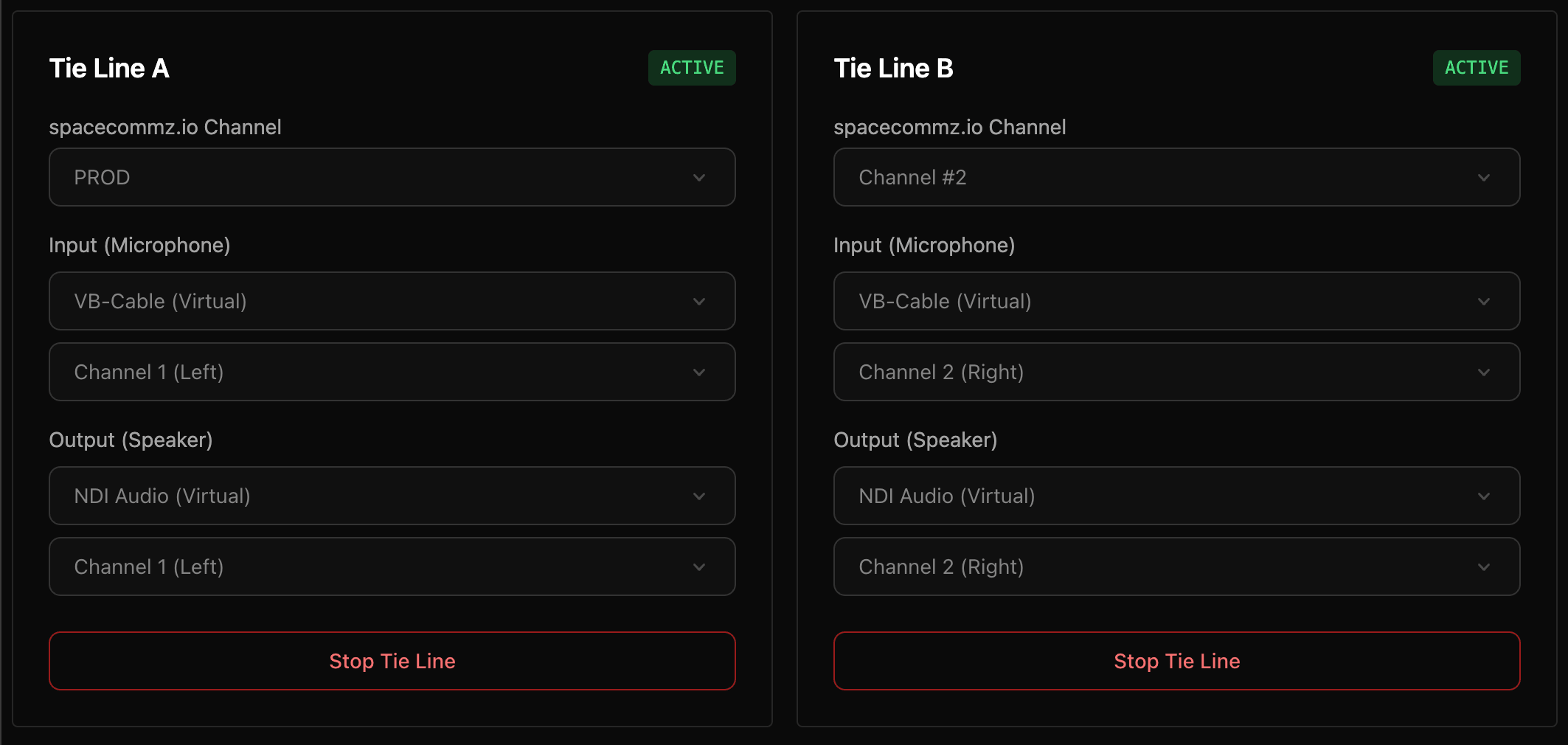
If you’ve ever needed to get a hardware intercom talking to spacecommz.io, this one is for you. Tie Lines let you patch a physical audio device straight in and out of a channel, from a browser tab. There’s no app to install.
A patch bay in a browser tab
A Tie Line takes audio from one of your computer’s inputs, a sound card, USB interface or any audio device, and sends it into a spacecommz.io channel. At the same time it takes that channel’s audio and sends it back out to one of your outputs. Two-way, exactly like the patch you’d wire up on a hardware intercom.
That makes it straightforward to bridge spacecommz.io with a matrix router, a broadcast desk, or an existing wired intercom that isn’t going anywhere.
Crucially, Tie Lines skip our audio processing entirely. Noise reduction, auto-gain and echo cancellation are all switched off, so what goes in is what comes out. That’s the behaviour you’d want from a hardware tie line, and it’s what you get here.
Two lines, one interface
You get two independent tie lines, A and B, and each can be pinned to the left or right channel of a stereo device. If you’ve only got one interface to hand, you can still run two separate mono paths down it: A on the left, B on the right.
Head to app.spacecommz.io/tie, enter your space name and Tie Lines API key, and you’re patched in. You can also pre-fill both as URL parameters, which is handy if you want to bookmark a one-click setup on a machine that does this job every week.
Icons for your channels
Also in this release: channels and party lines can now carry an icon. They show up in the channel list and on the space itself, so a busy layout is quicker to read at a glance. Linked party lines get their own icon too, so it’s obvious which ones are tied together.
There’s a full walkthrough in the Tie Lines documentation, including how to find your API key.